Discovery: Fidelity Slider & Stage Navigator
This page goes into details of the design of a couple of components that were integrated in the proximity of the Simulation Information Display (SID) control within the Discovery product. For introductory information about the Discovery Project, go to Ansys Discovery: UX Manager. For the information about my role as a designer for the Discovery Project, go to Ansys Discovery: UX Design.
When the user is setting up a simulation problem, in addition to adding constraints, conditions, mesh settings, materials, etc, the user is given the ability to control the fidelity of the simulation. By setting the fidelity towards the lower end of the scale, the simulation problem will solve quicker, but will give a less accurate answer. Conversely, by setting the fidelity towards the upper end of the scale, the answer will be more accurate, but will take a longer to solve.
The Discovery product exposes several different stages as part of the workflow. Each of these stages represent a focus and intention (roughly corresponding to an older product that Discovery is replacing) that the user will have when using Discovery, which will cause the layout of the UI and available functionality to adjust as appropriate. The three stages are Model, Explore, and Refine. The user is able to navigate between any of the stages (as long as they have the appropriate system and licensing requirements) at any time.
Initially we exposed a widget with multiple controls in a dedicated region of the Discovery UI that allowed users to change the fidelity and the current stage, but user feedback led us to conclude that the widget was taking too much space and attention from other areas of the UI. As we started brainstorming ideas for a solution, we believed we could utilize the area below the SID to fit a smaller control that would serve the dual purpose of allowing the user to navigate between stages (by using the arrows to navigate to a different stage), and to change the fidelity (by hovering over the stage name to reveal the fidelity control, if appropriate for the stage). With this narrowed focus, I and another designer on my team iterated through several versions, making adjustment through the feedback of our stakeholders.
Below are a few of the ideas that I explored for the concept. Once these ideas were shared, we took the feedback from both of our early concepts, and created a consolidated design that we believe took the best aspects from our earlier ideas and moved those forward.


Initial hand drawn sketches contemplating some initial ideas


Creating mockups that explored two different visualizations for the slider, and exploring user interactions for the control
We settled on the design below, which we believe gave users quick access to change the fidelity and the stage navigator, and didn’t detract too much attention away from other parts of the UI. I worked closely with our developers to implement this new control, and to ensure that it didn’t get in the way of the user interacting with the SID.


The final design of the fidelity slider, with the interaction and visual design for the fidelity slider among different stages

The proposed placement of the fidelity slider with respect to the SID Control
The images and video below show the Fidelity Slider and Stage Navigator control as implemented within our test environment, which after feedback from relevant stakeholders and testing was integrated into the Discovery product, right below the SID control.
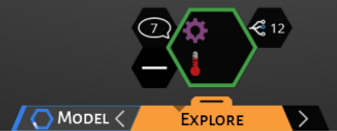

When the user hovers over the arrows to navigate to the next or previous stage, a preview is shown
including the stage name and relevant information of the simulation state at that stage

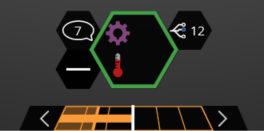
When the user hovers over the middle portion of the stage navigator control, the fidelity slide
control is shown, giving the user the ability to change the fidelity of the current simulation
A video to showing implemented stage navigation and fidelity control within the UI Toolkit
This also includes a popup to show all stages the user can navigate to